
AccuAir Report Builder by AccuAI
The AccuAI Report Builder turns plain-language questions about your AccuAir account and transaction data into a formatted, downloadable report without needing SQL, spreadsheet wrangling, or a custom report request. In this AccuAir Insights walkthrough, you will see the full workflow from start to finish: opening the AI Report Builder from the Reports menu, typing a question into the data query field, and watching AccuAI return the results alongside a written explanation of how it built them. Queries can pull transaction status, revenue analysis, balances, user activity, and other account data using either specific date ranges or natural phrases like “last week” or “last month.” From there, refine the query in line, export the finished report to CSV, or save it as a reusable template (with a name and description) that title and settlement teams can rerun later and download as CSV or XLSX. The Report Builder is one of a growing set of AccuAI features inside AccuAir designed to give title agencies faster, self-serve access to their own data.
Transcript:
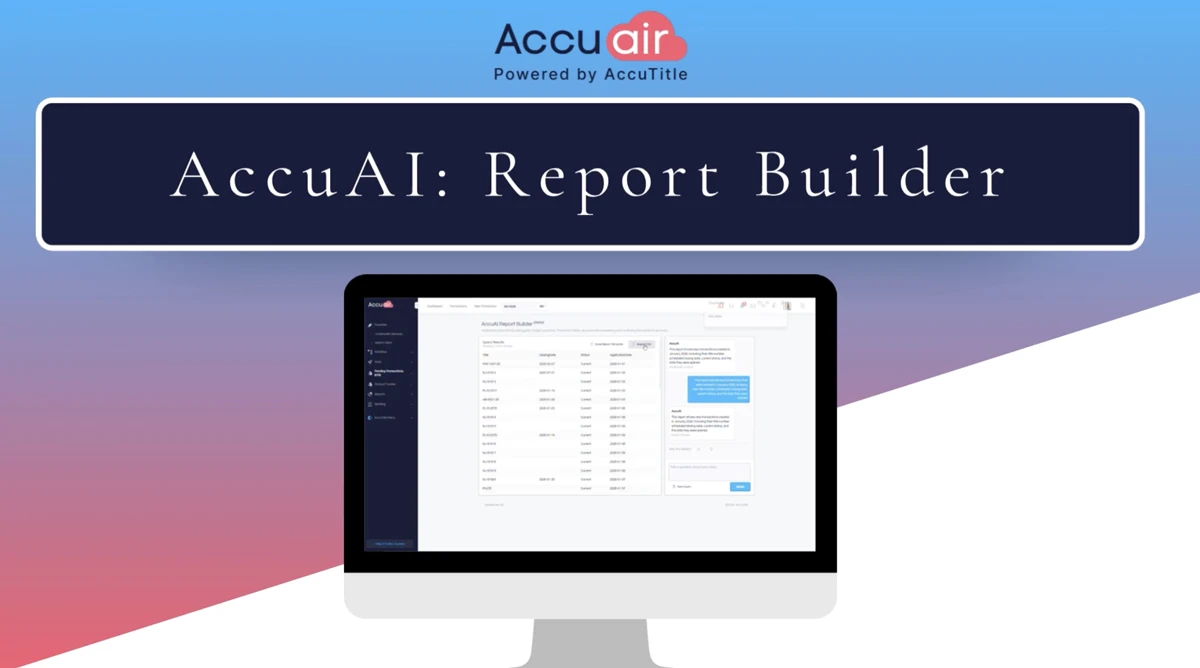
This is AccuAir’s automated report builder workflow using the AccuAI Report Builder. To access the AI Report Builder go to Reports on the left-hand toolbar and select AI Report Builder from the sub menu.
The AccuAI Report Builder window will open. On the bottom right-hand corner of the screen, type the details of your request in the “Ask a question about your data…” field. Then select SEND. The AI will begin processing the report.
You can query account and transaction data including transaction status, revenue analysis, balances, user activity, and more. Use specific date ranges or terms like “last week” or “last month” for the AI to analyze the data.
AccuAI returns a report with an explanation of the results. Users can refine the search by entering an additional query in the data query field and selecting SEND.
To download the final report, select Export CSV at the top of the Query Results. The file will be saved to the computer’s Downloads folder.
To start a new query and discard the existing one, select New Query at the bottom of the window. Select Clear to end the existing conversation.
If you wish to save the query as a report template, select Save Report Template at the top of the window. You can name the template and include a description to assist with future reporting. Then click Save Report Template.
When you are ready to use a template for a new query, on the left-hand toolbar select Reports then Saved AI Report Templates. Select the template you wish to run by clicking the template name. If the report has date parameters, you can edit those and then select Run Report.
The new report data will now display in the window and can be easily downloaded in csv or xlsx formats.
This concludes the demonstration. Thank you.
* These fields are required.