
AccuAI Smart Transaction Builder
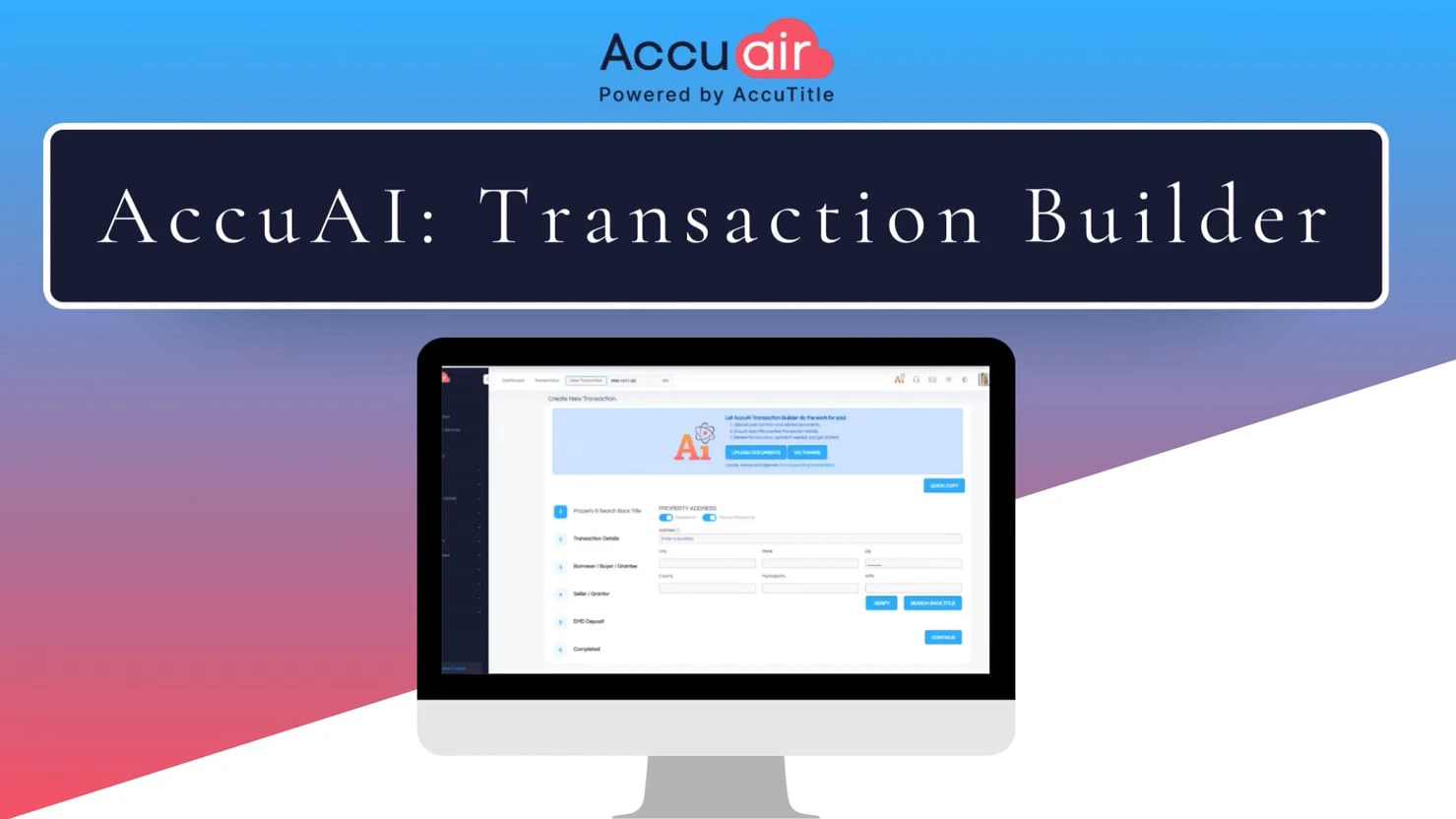
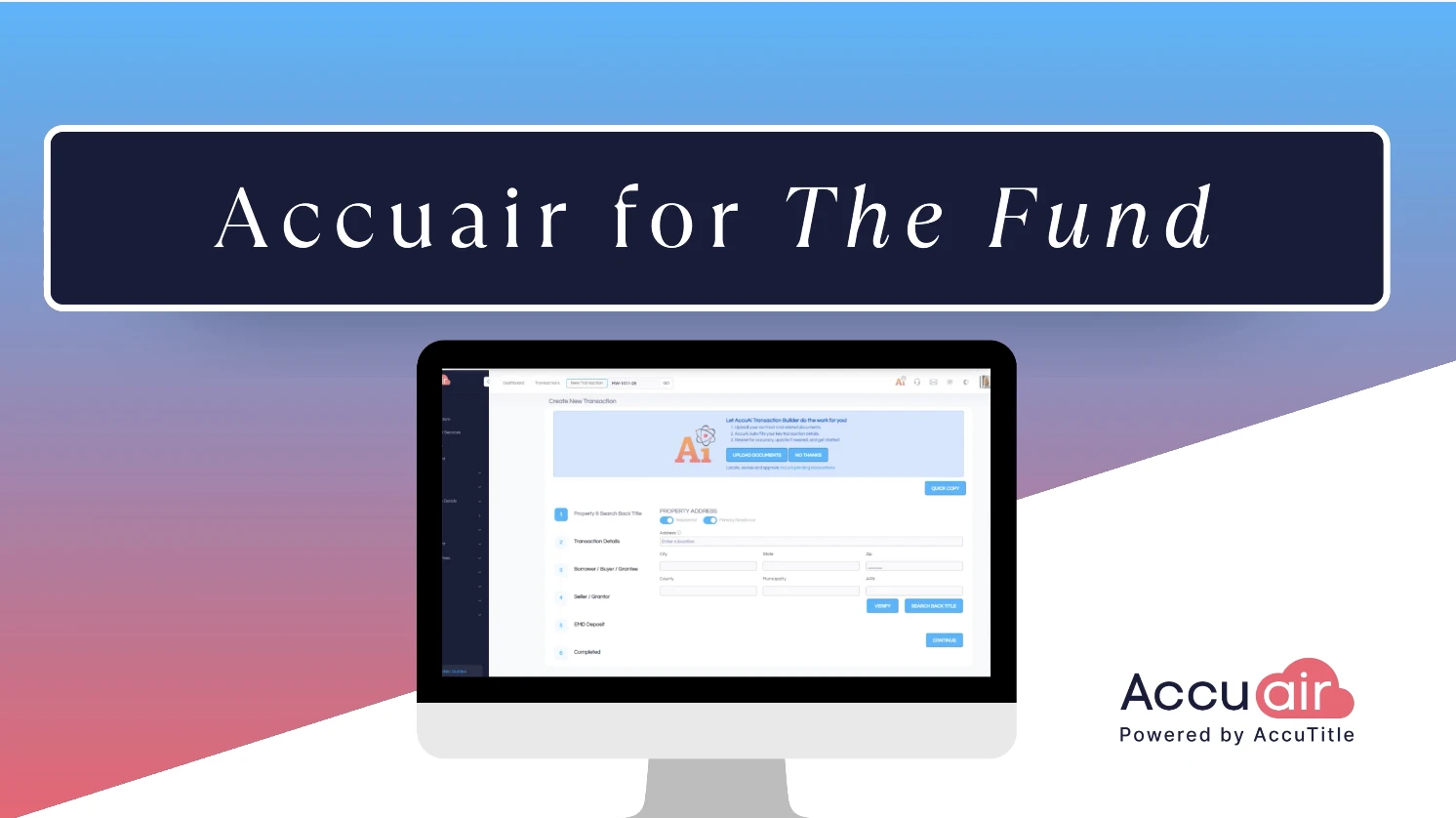
See how AccuAir’s AI-powered Smart Transaction Builder streamlines transaction intake for title professionals. This quick walkthrough shows how to upload any contract, automatically extract key details, verify accuracy with confidence indicators, and launch a fully pre-filled transaction in seconds.
Work faster, reduce manual entry, and start every file with confidence—with AccuAir.
Transcript:
This is AccuAir’s transaction intake workflow using the AccuAI transaction builder. First, let’s upload a contract and watch the system work. I’m choosing a scan version. You can already see the skewed edges and image artifacts. Most fields are typed yet near the end. I’ve added handwritten notes. For example, seller Alexandra Adams and her email aadams@gmail.com appear only in pen. I’ll click upload. Then process.
Notice that AccuAir isn’t tied to any particular state form. Whether your market uses a standard contract or a completely bespoke template, the engine treats it the same way. Read the page, extract the facts. We’ve tested dozens of formats across multiple states and are averaging about 92% accuracy. When the model misses, it’s typically an omission, not fabrication. Runtime is roughly 30 seconds for a one megabyte PDF, this five meg skin takes a bit longer, which you’ll see in the progress bar and the results are back. The AI lifted every data point and assigned a confidence tag, high, medium or low. Nearly everything landed in the high tier.
Let’s step through transaction type correctly set to purchase sale price $500,000 scheduled closing August 8th, 2025. On the borrower’s screen, you’ll see both buyers extracted exactly as written in the contract for the seller. It even captured the handwritten email address. If a party were an LLC or a corporation, the system would flag that entity type automatically. Earnest money. Details were light in this document, no dollar amount, but the contract did state that the seller’s attorney will hold the funds and the AI caught that nuance. Additionally, you have the opportunity to extract contacts from your documents such as realtors, attorneys, and lenders, and add them to your new transaction. If you do not wish to add the contacts at this time, you can choose to discard the contact or skip for now and add the contact at a later time. The system will advise the number of contacts that were extracted and whether the contact is a match in your current phone book, or will need to be added as a new contact if the contact is a match. It will display any matching contacts from your phone book in the window and will indicate the match percentage for accuracy.
If you wish to use the existing contact, you will then select the contact and choose you selected match. If no matches are found in your phone book, you can create a new phone book contact, enter in their unique id, select their role, and then select add as new. Once you have added all contacts, you’ll be directed to the transaction dashboard where the contacts will now be displayed.
Keying that information manually would have taken Several minutes and introduced plenty of risk. Here, it’s done in seconds. Real users will still verify the data of course, but they’re starting from a clean, accurate draft instead of a blink screen. That concludes the demo. Thank you for watching and happy title.
* These fields are required.