
1099-S Management & Reporting
AccuAir’s 1099-S Management & Reporting tools help title professionals streamline year-end tax reporting with accuracy and confidence. This walkthrough covers how to prepare and validate your 1099-S data, verify Tax ID information, and submit reports for IRS compliance—all within a secure, efficient workflow.
You’ll also see how AccuTitle’s integrated print and mail submission service simplifies distribution, reducing manual steps and minimizing the risk of errors or missed deadlines. With built-in validation and reporting tools, Accuair helps ensure every filing is accurate, compliant, and on time.
Simplify 1099-S reporting and reduce compliance stress—with AccuAir.
Transcript:
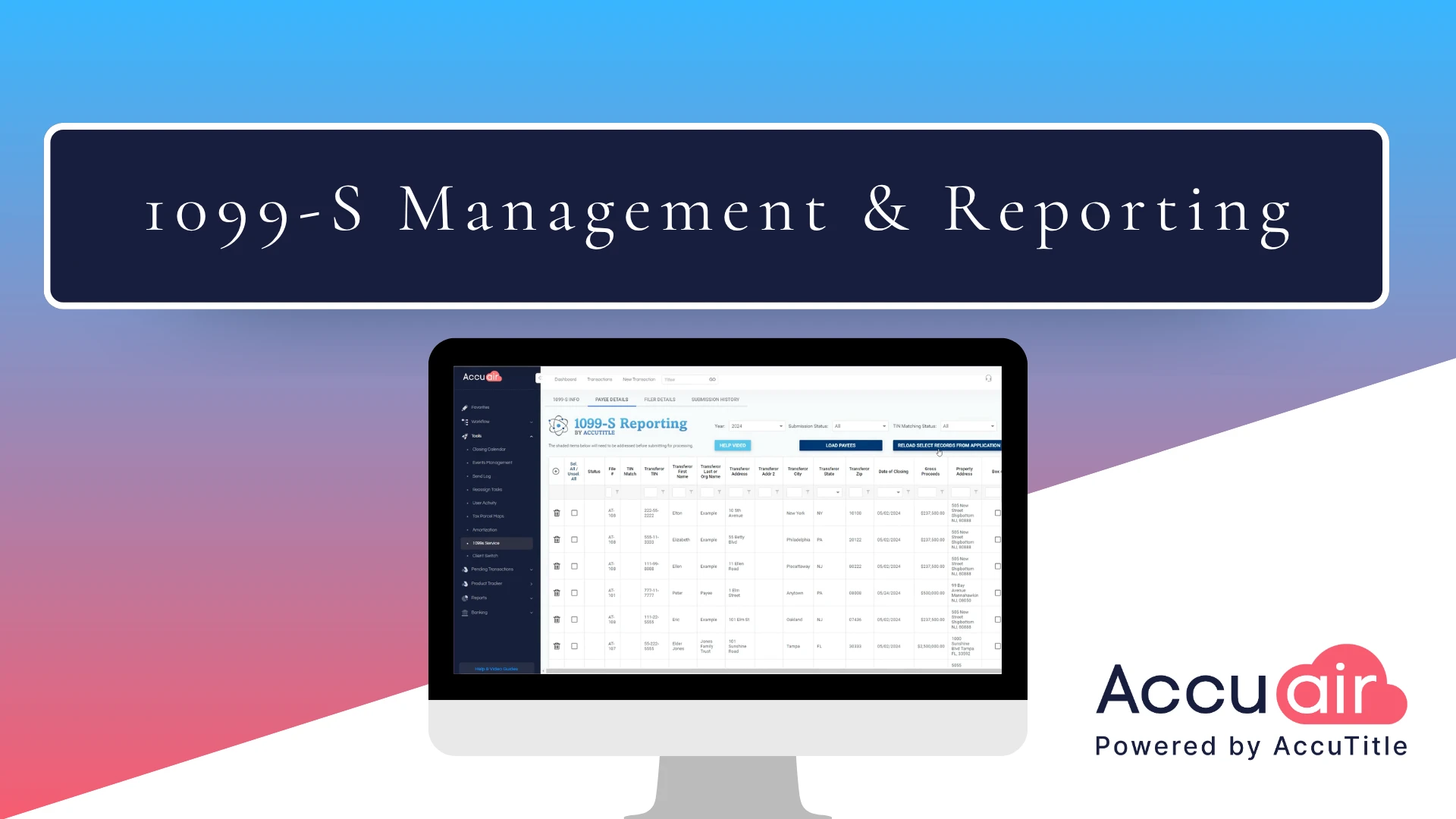
All right, let’s get started. First, we need to navigate to the 1099s screen. To do so, we’ll click on the gear icon to navigate to the AccuAir administration menu. Next, we’ll find 1099s reporting under data tools and utilities. Now you’ll see some basic information about our 1099 reporting service. Now we’re going to go ahead and load our payee and filer data. To do so, we’re going to click load payees.
Now you have the option to load all your payees for the current tax year or load select payees based on a company closing date range and the presence of a closed or paid status. After the data loads, we are taken to the payee details screen.
We’ll see that two of our records had errors. Those are indicated by being highlighted in red. You’ll see that this record appears to have a tax ID that is missing one digit, and this record appears to be missing. The state errors can be corrected directly on the 1099 reporting screen, or you can navigate back to the transaction details for that particular file and make the change there.
In this video, we will show both options. For this record, we’ll go ahead and just add the state from our dropdown menu here and click save. Now you’ll see that the record no longer is highlighted in red for the other record. We are going to make that change on the transaction details screen. So I’m going to open that up in another window, navigate to that particular file, go into the seller screen, add the digit to the tax ID, and click save. Now I’m going to navigate back to the 10 99 screen. Select this particular record and select reload. Select records from application. What this is going to do is repopulate that record with any information, new information from the transaction detail screen.
So I scroll down, I see that record highlighted in green indicating that it was changed and I see that the tax ID is now nine digits long as it should be. Alright. Sometimes clients have 10 99 records that they need to process that were not found in the Accu Air System. If you need to add a new record to the 1099s reporting screen, just go ahead and click the plus icon here. Then you would just add a file number to associate with that record. It does not have to be a file number that actually exists in AccuAir. Uh, click save. Then you’re going to get a new record on the screen that you can fill in all the information about that particular payee in the interest of time, we’re gonna skip over that for this demonstration.
Okay, now that we have our 1099 information entered, let’s validate our tax IDs. Tax IDs are typically Social Security numbers or employer identification numbers. The tax IDs are validated directly with the IRS. When tax IDs are validated, we are ensuring that one, that this is a valid and currently active tax ID. And two, that the name associated with that particular tax ID matches the name on file with the IRS. So, for this example, what we’re going to do is select all of our records using the select all option here. Scroll down to perform TIN Matching and click submit. As you can see, you can expect results within 24 hours.
For the purposes of this demonstration, we’ll speed that up quite a bit. You see here now that we’ve gotten tin match status back from the IRS for all of our payee records, you can limit the display to only successful matches or only errors. If you’d like to use our TIN match status dropdown, I’m gonna go ahead and limit it to only errors. You’ll see that we had three errors here.
If we mouse over the exclamation point icon, we can see that for this one, we got TIN entered is not currently issued. This means that the tin is 100% invalid. It has to be incorrect. We got the same error for this other tin associated with that same file.
And then for this different file, we got TIN name, combination. Does not match IRS records. This means that it could be either the tin or the tax ID that is wrong. Um, when this happens, what we recommend that you do is go back to the seller or their representative and get the corrected tax ID or name. For the purposes of this demonstration, we are going to pretend like we updated those records in the system and that they were validated by the IRS. Alright, now we see that we are getting a check mark for those records where we were previously seeing the error status. Since all of our tax IDs are validated with the IRS, we are going to move on to submitting our 1099 records for IRS reporting and for printing and mailing with payees. We recommend doing this all in one batch. I will use the select all option. Then I’m going to scroll down to submit for processing. I’m gonna make this an original submission, and I’m going to submit it for both IRS reporting and printing and mailing to the payee.
If you need to make corrections because some information that was submitted either to the IRS or printed and mailed to payee was incorrect, you can use the corrections option as well. I also need to affirm that I have reviewed all the information and then I’m going to go ahead and click submit and I click confirm. Ah, but I’ve gotten a series of errors. Why? It’s because we are missing some information from the filer. Again, the filer is the agency record, that needs to be submitted along with the payee records to the IRS. So we’re gonna close this. We’re going to navigate to the filer details and we look here and see that a tax ID and contact name are missing. We’re gonna go ahead and enter in a tax ID as well as a contact name. Click save. Now, if I navigate back to payee details, go back to submit for processing, follow the same steps I did last time. Submit this time. I have a successful submission and those 13 records have now been submitted to be processed with both the IRS and printed in mailed to payee.
The last feature I will demonstrate is reviewing previous submissions. AccuAir maintains a permanent record of all of the submissions that you’ve performed. AccuAir maintains a permanent record of all the submissions that have been done for your agency. You can toggle to different years. And then in the in the table here you can see information about the submissions you’ve done for the current tax year. Once the files have been successfully processed with the IRS An IRS confirmation number will appeal will appear here. That’ll happen usually 24 to 48 business hours after the submission. If we click on the submission date, we can see all the detailed information associated with this submission. If we click on the filer, we can see details about the filer.











* These fields are required.